STEP 01Add files
Choose PDFs, or add JPG and PNG files in page order.
Merge PDFs in your chosen order, split or extract page ranges, or create one PDF from ordered JPG and PNG images.
Loading tool workspace…
Choose PDFs, or add JPG and PNG files in page order.
Choose merge, split/extract or images-to-PDF and confirm the credit cost.
Download PDF results; multiple outputs are packaged as a ZIP.
Merge a cover, body and appendices into one ordered PDF.
Extract only the pages needed for sharing or filing.
Turn ordered JPG or PNG scans into an A4 or Letter PDF.
No. Merge, split and images-to-PDF all run in the browser.
No. Encrypted, damaged or extremely large PDFs may not be safe to process in a browser.
No. The separate OCR tool accepts clear JPG, PNG and WebP images only and cannot read PDFs.
Combine a cover, report and appendix in the intended order, or select only the pages a recipient needs from the original PDF. FileNest processes supported PDF page operations in your browser. Check the operation preview, planned output count and current allowance before downloading and reviewing the result.
Arrange the source files first, check the expected page count in the preview, then merge. Open the resulting PDF to check the first and last pages and any appendix.
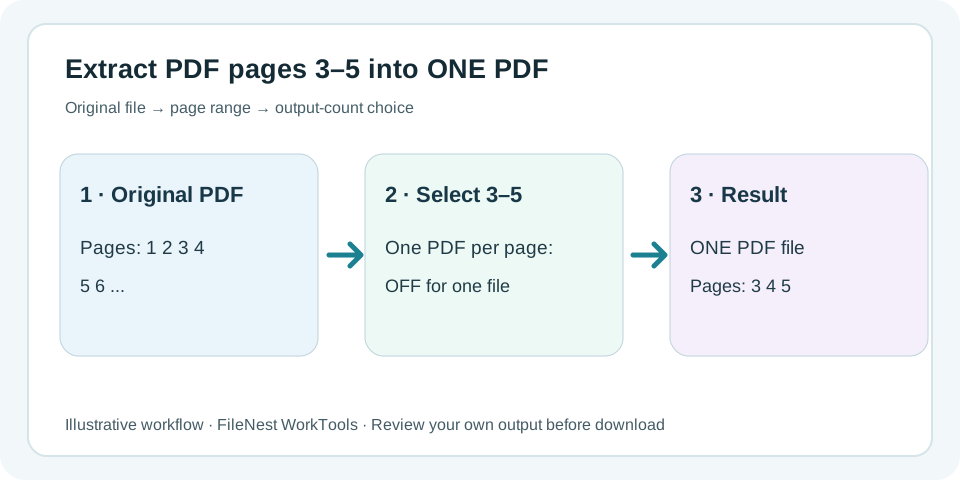
Select the original source and enter 3-5 under Split / extract. Turn OFF the initially checked Create one PDF per page option to obtain one three-page file; leave it on to get three separate one-page PDFs.
This tool processes supported unencrypted PDFs and creates PDFs from JPG/PNG images in the browser. It does not OCR PDF pages, convert PDF to Word or handle encrypted PDFs; verify live size and allowance limits first.
Only evidence directly relevant to this tool is listed below, with its testing or disclosure boundaries.
Check whether current working-file contents stay browser-local or use an explicitly disclosed transient-cloud path.
View evidenceReview order and output plan before generating
File contents are not retained